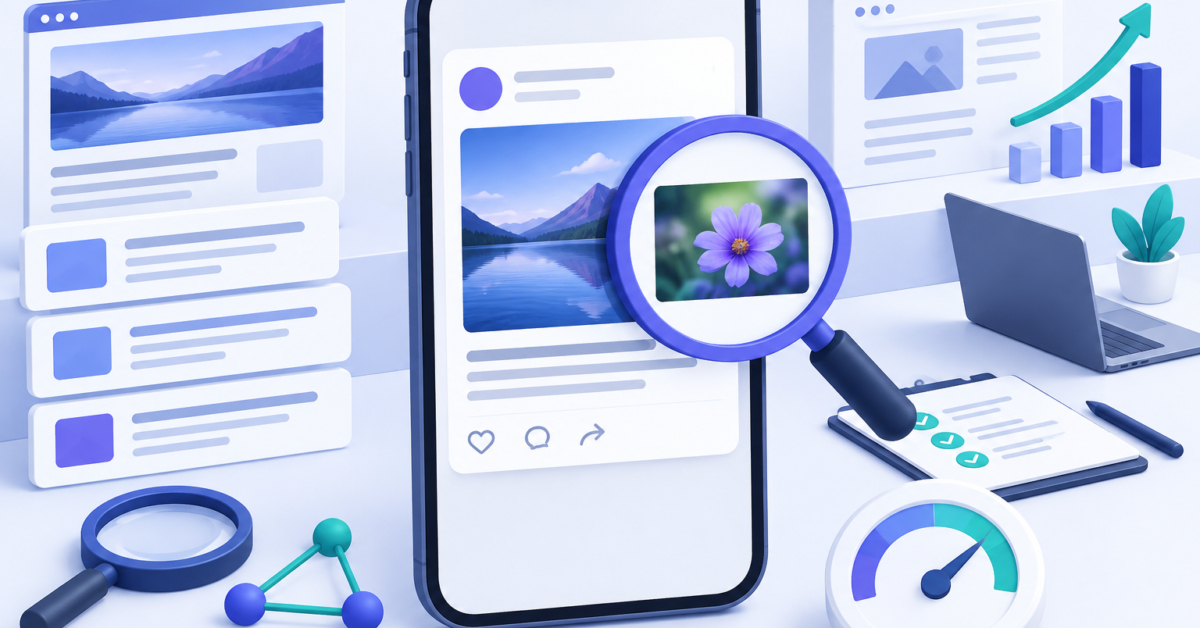
If you have ever pasted a link into a chat app or social post and watched the wrong image showing when sharing website link previews, you are looking at a mismatch between what the page requests and what the platform decided to render. The fix is rarely a mystery once you follow a set order: read the Open Graph tags delivered for that exact URL, confirm the referenced image actually loads on its own, check its real dimensions and crop, and understand why some platforms hold onto an old preview even after everything is corrected. Along the way it helps to remember that a properly set og:image tag is a request to the platform, not a guarantee. Google Search Central states that its own choice of a Search preview image is completely automated and draws on multiple sources, so a fix that improves social sharing will not force a specific thumbnail into Google Search results.
Table of Contents
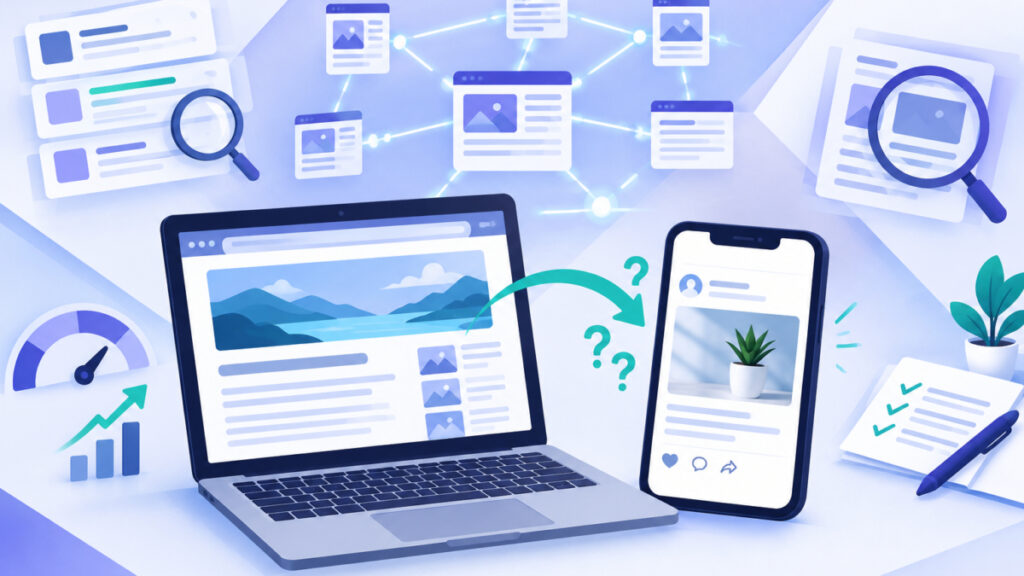
Understanding Why the Wrong Image Appears When You Share a Website Link
Open Graph is a protocol that lets a page describe itself to sharing platforms through a small set of meta tags placed in the page head. The core properties are og:title, og:type, og:url, and og:image, with og:description adding further context, according to the Open Graph protocol documentation at ogp.me. The og:image property identifies an image that represents the page, but it is only an input the platform reads when it builds a preview card. It is not a rendering instruction, so the platform is still free to fall back to something else if the tag is missing, malformed, or points to content it cannot use.
LinkedIn’s own help documentation confirms this in practice: it states that missing Open Graph or oEmbed information can cause other content from the site, rather than the intended image, to appear in a shared post. In other words, the wrong image often is not a bug in the platform. It is the platform substituting a fallback because the page did not clearly specify what it wanted shown.
Step 1: Inspect the Open Graph Tags Delivered for That Exact URL
Start by checking the precise URL that was shared, not a similar page or the homepage. Load the HTML that is actually delivered for that URL and look at the og:image value: confirm it points to the intended image rather than an old asset, a generic placeholder, or an image copied from a different page. While you are there, check og:title, og:description, og:type, and og:url for inconsistencies, since a mismatched og:url can sometimes cause a platform to pull data from an unexpected page.
Rather than digging through raw HTML by hand, run the page through AllEasySEO’s Open Graph Checker to see the og:title, og:description, og:url, and og:image values as they are currently set on that URL. Reviewing these fields together makes it easier to spot a stale image reference or a tag that never got updated after a redesign.

Step 2: Confirm the Image URL Resolves and Isn't Blocked
Open the image URL from og:image on its own, outside of any sharing tool, and verify that it resolves to a publicly retrievable image rather than a 404 page, a redirect loop, or a login screen. LinkedIn’s help documentation specifically flags broken original images and possible SSL-certificate-related preview errors as common causes of a failed or wrong preview, so a certificate problem on the image’s own domain or subdomain can quietly break every card built from that URL.
If the image loads fine in a browser but still fails on a platform, check whether the page or image is restricted by authentication, a firewall rule, or a crawler directive that only allows certain bots. A quick check with AllEasySEO’s SSL Checker can confirm whether the certificate serving that image is valid and matches the domain, which rules out one common cause before you move on to redesigning anything. Keep in mind that a diagnostic built around one search engine does not prove how every social platform will behave, so treat this step as ruling out server-side problems rather than confirming social compatibility.
Step 3: Check the Image's Real Dimensions and Crop
Open Graph allows optional og:image:width and og:image:height values, and they should accurately describe the actual file rather than an aspirational size, according to the protocol documentation at ogp.me. A landscape image around a 1.91:1 ratio is a practical design starting point, not a strict universal rule: LinkedIn describes a 1200 by 627 pixel preview frame, while Wix’s platform guidance recommends 1200 by 630 pixels. What matters most is checking the resulting card for a cropped subject, a squeezed logo, or unreadable text once the platform applies its own frame.
- Note the exact pixel width and height of the current image file.
- Compare that against a roughly 1.91:1 landscape target rather than a square or extreme aspect ratio.
- Re-crop or export a version sized for the preview frame using AllEasySEO’s Image Crop Tool so the subject stays centered instead of getting cut off at the edges.
- Confirm the exported file meets each platform’s recommended dimensions with the Social Media Image Size Checker before publishing the corrected og:image.
Step 4: Build Correct Markup With Descriptive Alt Text
Open Graph also defines og:image:alt as a description of what the image contains, not a caption, and the protocol documentation notes that pages specifying og:image should specify it. This is a distinct field from the HTML img element’s alt attribute, which describes an image embedded directly in page content; editing one does not automatically change the other, so both need to be set correctly if the page uses both.
A minimal, correct block looks like this, using an absolute HTTPS URL, truthful width and height, and a short factual description:
<meta property="og:title" content="Product Name - Short Benefit">
<meta property="og:type" content="website">
<meta property="og:url" content="https://example.com/product-page">
<meta property="og:description" content="One sentence describing the page.">
<meta property="og:image" content="https://example.com/images/product-share.jpg">
<meta property="og:image:width" content="1200">
<meta property="og:image:height" content="630">
<meta property="og:image:alt" content="Blue ceramic mug on a wooden table">
Instead of writing every tag by hand, generate compliant meta tags with AllEasySEO’s Open Graph Generator, which shows a live preview alongside fields for the image URL, its dimensions, and its alt text so you can catch a missing value before publishing. Since og:image:alt shares a purpose with visible image accessibility text, it can also help to audit the alt text you already publish with the Image Alt Text Checker so descriptions stay consistent across the page.
Why the Wrong Image Can Still Show When You Share a Website Link on Some Platforms
If the tags and image are now correct but an old preview still appears, the platform is likely showing a cached version of the page rather than re-reading it. LinkedIn documents that its Post Inspector tool can refresh the cached information for a URL, but its help page is specific that this affects new posts going forward, not the preview already attached to an existing post. Do not expect a single refresh to instantly update every past share or every other platform at the same time.
It also helps to separate social previews from Google Search entirely. Google Search Central states that its selection of a Search preview image is completely automated and draws on multiple sources across the page, so an og:image tag or supported structured data can indicate a preferred image without forcing Google’s final choice. Google’s own guidance recommends choosing a relevant, representative, high-resolution image and avoiding generic logos, heavy text overlays, and extreme aspect ratios, but it stops short of guaranteeing that any specific image will be the one displayed.
Frequently asked questions
Why does an old image keep showing even after I updated og:image?
The platform is likely displaying a cached version of the page’s information rather than re-reading the current tags. LinkedIn documents that its Post Inspector can refresh a URL’s cached data, but this affects new posts rather than previews already attached to existing posts.
What if no image appears at all when the link is shared?
This usually means og:image is missing, points to a broken URL, or the page lacks enough Open Graph information for the platform to build a card. LinkedIn’s documentation notes that missing Open Graph or oEmbed data can lead to unrelated site content being shown instead.
Does fixing my og:image guarantee Google will use it in Search results?
No. Google Search Central states that its selection of a Search preview image is completely automated and pulls from multiple sources on the page, so og:image or structured data can indicate a preference without forcing Google’s final choice.
What size should my og:image file actually be?
There is no single mandatory size, but a landscape image around a 1.91:1 ratio works as a practical starting point. LinkedIn describes a 1200 by 627 pixel preview frame, and Wix’s platform guidance recommends 1200 by 630 pixels.
Is og:image:alt the same as a regular image alt attribute?
No. The Open Graph protocol defines og:image:alt as a description of the image’s content for sharing platforms, while the HTML img element’s alt attribute describes an image embedded in the page itself. Updating one does not automatically update the other.
Can authentication or crawler restrictions cause the wrong image to load?
Yes. If the image or the page is restricted by a login wall, firewall rule, or a directive that only allows specific crawlers, a sharing platform may be unable to retrieve the intended image and could fall back to something else instead.
Do I need to set og:image:width and og:image:height?
They are optional according to the Open Graph protocol, but including truthful values that match the actual file helps the platform lay out the preview card correctly and can reduce unexpected cropping.
Next steps
Most cases of the wrong image showing when sharing website link previews trace back to one of a few causes: an og:image tag pointing at the wrong or an old asset, an image URL that fails to load, dimensions that get badly cropped by the platform’s frame, or a cached preview from before the fix went live. Working through the tags, the image URL, the dimensions, and the cache in that order keeps the troubleshooting focused instead of guessing. Once the markup is confirmed with a tool built for that job and the image is sized to a sensible landscape frame with honest width, height, and alt values, most platforms will pick up the corrected preview the next time they read the page.
Related tools and resources on AllEasySEO:
Sources and further reading
- https://developers.google.com/search/docs/appearance/google-images
- https://developers.google.com/search/docs/appearance/google-discover
- https://ogp.me/
- https://developers.google.com/search/docs/appearance/structured-data/image-license-metadata
- https://www.linkedin.com/help/linkedin/answer/a6233775
- https://www.linkedin.com/help/linkedin/answer/a525301
- https://www.linkedin.com/help/linkedin/answer/a525063
- https://www.linkedin.com/help/linkedin/answer/a521928
- https://www.linkedin.com/help/linkedin/answer/a732049
- https://support.wix.com/en/article/wix-editor-recommended-ogimage-size


1 comment